Template Syntax
Vue uses an HTML-based template syntax that lets you declaratively describe how a component’s state should be rendered to the DOM.
In a Vue component, the template acts as a bridge between reactive data (JavaScript) and the DOM. When the underlying data changes, Vue automatically updates the rendered output to stay in sync, without you needing to manually manipulate the DOM.
Vue Components
NOTE
Components are covered in much more detail in the next chapter. This section provides just enough context to help you move forward until they are explored in depth.
In Vue, a component is a reusable, self-contained piece of UI. Each component, typically defined as Single File Components (SFCs) in Vue 3, has its own template, logic and styles and can be composed together to build larger applications. Components can then be composed together to build larger applications.
For example, let’s create a component called MyComponent.vue:
<script setup>
import { ref } from 'vue'

const count = ref(0)
</script>

<template>
  <button @click="count++">
    You clicked me {{ count }} times
  </button>
</template>
This component can now be reused anywhere in the app. To use it inside another component, you import it and reference it in the template as shown below:
<script setup>
import MyComponent from './components/MyComponent.vue'
</script>

<template>
  <h1>Welcome</h1>
  <MyComponent />
</template>
Passing Data with Props
Components often need data from their parent. Vue uses props (short for properties) to pass data down from parent components to child components.
Let’s update MyComponent to accept a prop:
<script setup>
defineProps({
  title: String
})
</script>

<template>
  <h2>{{ title }}</h2>
</template>
Now, when using MyComponent, we can pass data to it:
<MyComponent title="Hello from Parent" />Component Naming
Vue components can be named and referenced in two different ways: PascalCase (MyComponent) and kebab-case (my-component). Vue treats both forms as equivalent, so either can be used in templates.
In projects that use Single File Components and modern build tools, PascalCase is generally preferred. It aligns with JavaScript naming conventions and makes custom components easier to distinguish from native HTML elements such as <div> or <button>. When scanning a template, PascalCase component names stand out immediately as user-defined components.
kebab-case, on the other hand, follows standard HTML naming rules. It is required when writing templates directly in the DOM (for example, when using Vue via a CDN without a build step), since HTML is case-insensitive. For this reason, Vue automatically maps PascalCase component names to kebab-case when rendering.
As a rule of thumb, use PascalCase when working inside .vue files and rely on kebab-case only when the environment requires it. Vue’s flexibility ensures both styles work seamlessly together.
With this foundation in place, we can now explore how Vue binds data to the DOM using its template syntax:
- Text Interpolation
- Attribute Binding
Text Interpolation
The most basic form of data binding is text interpolation using the "Mustache" syntax (double curly braces):
<script setup>
import { ref } from 'vue'

// reactive data
const name = ref("Pirate Dev")
</script>

<template>
  <h1>My name is {{ name }}</h1>
</template>
Vue finds the variable between curly brackets and renders its value to the DOM.
Attribute Binding
Mustache syntax doesn't work for HTML attributes. Instead, Vue provides the v-bind directive to bind attributes to reactive data:
<script setup>
import { ref } from 'vue'

// reactive data
const href = ref("https://wiki.piratedev.com")
</script>

<template>
  <a v-bind:href="href">
    <button>Click here to visit website</button>
  </a>
</template>
This dynamically adds the href attribute using the value specified in the script block. If the bound value is null or undefined, then the attribute will be removed from the rendered element.
Shorthand
Since v-bind is used so frequently, Vue offers a shorthand. You can replace v-bind: with a single colon (:).
The <a> tag in the example above can be rewritten as:
<a :href="href">
  <button>Click here to visit website</button>
</a>
Same-name Shorthand
NOTE
This feature is only available in Vue 3.4 and above.
If the variable has the same name as the attribute name, the syntax can be further shortened to omit the attribute value:
<a :href>
  <button>Click here to visit website</button>
</a>
This is similar to the property shorthand syntax used when declaring objects in JavaScript or TypeScript.
Boolean Attributes
Attribute binding also works with Boolean attributes such as disabled.
<script setup>
import { ref } from 'vue'

// reactive data
const disabled = ref(true)
</script>

<template>
  <button :disabled>Click here</button>
</template>
The disabled attribute will be rendered if the bound value is truthy (including an empty string). For all other falsy values (false, null, undefined, 0), the attribute is omitted.
Binding Multiple Attributes at Once
When you have an object that represents multiple HTML attributes:
const objectOfAttrs = {
  id: 'container',
  class: 'wrapper',
  style: 'background-color:green'
}
You can bind all of them to an element at once using v-bind without an argument:
<div v-bind="objectOfAttrs"></div>JavaScript Expressions
In addition to binding simple property keys in templates, Vue supports full JavaScript expressions inside both binding methods.
For example:
<p>{{ message.toUpperCase() }}</p>
<img :src="isDark ? darkLogo : lightLogo" />
Expressions Only
Each binding may contain one single expression. An expression is a piece of code that evaluates to a value. A helpful rule of thumb is to ask whether the code could appear on the right-hand side of a return statement.
As a result, the following examples will NOT work:
<!-- This is a statement, not an expression -->
{{ var a = 1 }}

<!-- Flow control statements are not allowed -->
{{ if (ok) { return message } }}
Calling Functions
You can also call methods exposed by the component directly inside binding expressions:
<time :title="toTitleDate(date)" :datetime="date">
  {{ formatDate(date) }}
</time>
NOTE
Functions called inside binding expressions will be called every time the component updates, so they should not have any side effects, such as changing data or triggering asynchronous operations.
Directives
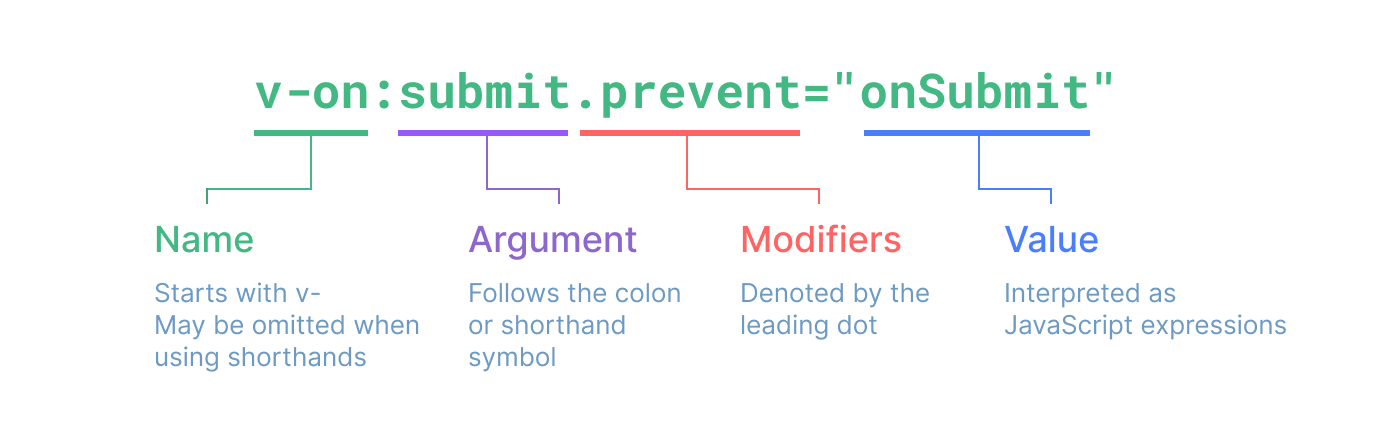
Directives are special HTML attributes with the v- prefix. They allow you to bind data, handle events, or apply reactive behavior to HTML elements. Vue provides a number of built-in directives, including v-bind which was introduced above.
Directive values are expected to be single JavaScript expressions (with the exception of v-for, v-on and v-slot, which are covered later).
Arguments
Some directives accept an "argument", specified after a colon (:). Consider the following example:
<a v-bind:href="url"> ... </a>Here, href is the argument, which tells the v-bind directive to bind the element's href attribute to the value of the expression url.
Dynamic Arguments
In some cases, the argument itself can be dynamic. This is done by wrapping the argument in square brackets:
<a v-bind:[attributeName]="url"> ... </a>Here, if the attributeName dynamically evaluates to href, then this binding will be equivalent to v-bind:href.
Modifiers
Modifiers are special postfixes denoted by a dot, which indicate that a directive should be bound in some special way. For example, the .prevent modifier tells the v-on directive to call event.preventDefault() on the triggered event:
<form @submit.prevent="onSubmit">...</form>Modifiers are specific to certain directives and will be introduced alongside them later.
Directive Syntax
Here's the full directive syntax visualized: